
Studying with e-books

April 6, 2020

VGTU community members have access to the following e-books in lithuanian language:

1. VGTU publishing house Technika e-books
2. Kaunas University of Technology e-books
3. Open access ebooks of Mykolas Romeris University

VGTU publishing house Technika e-books

All books published by VGTU publishing house "Technika" have their own digital version. The portal currently has over 600 e-textbooks and is accessible to all members of the VGTU community by reading on the university network computers or from home via VPN . E-books are divided into physical, human, social and technological sciences

How to read e-books?

First of all, being on VGTU computer network, you need to register. You then need to install the iPublishCentral Reader application, which will allow you to read, download books later, even when you are not connected to the VGTU network and without an Internet connection, anytime via iOffline.

The benefits of Bookshelf 

Folder Bookshelf appears when you sign up for the platform


In this section you can have your bookshelf, search for a word, phrase or sentence among all the texts on the portal or just on your shelf through the search box. You can also change, set the font for your book, enlarge pictures, schemes, and so on. It is possible to bookmark the page (with the Bookmark button), to mark a certain part of the text, to leave comments, to strike out the necessary information, to print the pages (under My Folder). Share book information via email via email and other social networks.

Ability to print the book

You need to register online to print a book, only registered users can print the desired book by clicking the printer icon. Print a specific page only once.

Kaunas University of Technology e-books 

VGTU community members has free access to 965 KTU ebooks until 2 of March, 2021. Community members can read these ebooks from computers on the VGTU network or from home using the VPN service 


When you‘ll open this book platform, the textbooks on the left are organized around the following topics:

Environment, Chemistry, Education, Economics, Electrical and Electronic Engineering, Energy and Thermal Engineering, Philology, Philosophy, Physics, Informatics, Engineering Graphics, History, Physical Education, Mathematics, Mechanical Engineering, Materials Engineering, Music, Political Science, Psychology, Embroidery Technology, Sociology, Construction, Law, mMagement and administration, Conference proceedings and presentations.


Book search/advanced search box is at the top of  left side 

The entered phrase is searched by title, author, ISBN, e-ISBN, DOI number in the searched book, its annotation, and its contents. Search provides all  list of books when at least one of the search points mentioned above contains the entered phrase. You should use advanced search to narrow your search results.
When you find a book of interest, press "read book" and the buttons on the top toolbar allow you to change the view of the book you're reading. When you place the cursor on the appropriate button, you can see what it is for: you can zoom in, out, select the reading method that suits you, and move on to the next pages.


Important: there is no way to download the book to your computer, you can only read it online, you cannot read it offline. There is also no way to print the book.

Open access ebooks of Mykolas Romeris University

These are open access e-books for the humanities and social sciences. As like in the VGTU e-book platform, the books are organized into the humanities, social sciences and exact sciences.

How to read or download the books?

You can read online or install iPublishCentral Reader on your computer, which allows you to read or download books(but requires a platform connection), and later, even when you are not connected to the VGTU network and without an internet connection at any time through iOffline.

Benefits of Bookshelf section (appears when user log in it)

Possibility to write comments in the text of the e-book. Select a location by email in the book where you want to write your note, then right-click and select Add Note. You can read and manage all your notes on the Bookshelf page.
When you open a book, there is a Bookmark. Page button in the toolbar at the top that will mark the page as a Bookmark tab. You can read and manage your Bookmarks on the Bookshelf page.

 

Related news

From biological bridges to living facades: how civil engineers are reshaping cities
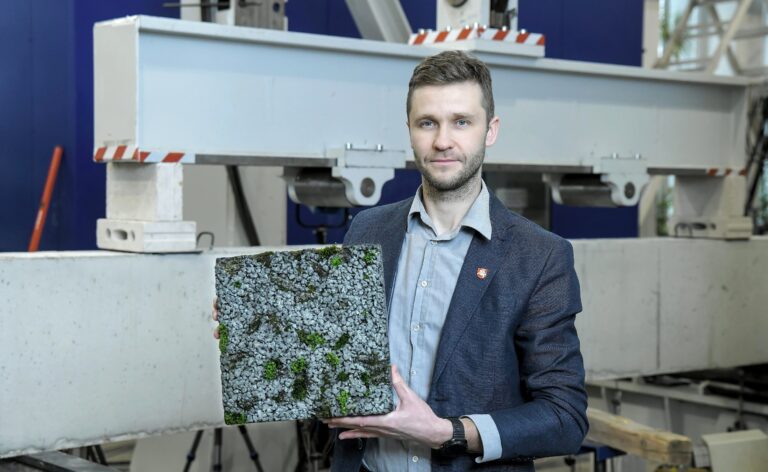
Modern buildings are no longer made of concrete and steel alone. Biology, artificial intelligence, and sustainable technologies are becoming an integral part of construction, transforming the way cities are designed and built. As technology advances and environmental awareness grows, civil engineers are developing innovative materials and construction methods that are more sustainable, durable, and environmentally responsible. One of these innovators is Assoc. Prof. Dr. Ronaldas Jakubovskis, a researcher at the Faculty of Civil Engineering at VILNIUS TECH, whose work is helping shape the future of urban environments. Turning Research into Real-World Structures Assoc. Prof. Dr. Ronaldas Jakubovskis serves as a Senior Researcher at the Laboratory of Innovative Building Structures, where his work focuses on developing advanced structural solutions through experimental testing, laboratory research, and numerical modelling. However, innovation rarely begins with a completely new idea. According to Dr. Jakubovskis, much of the research process is dedicated to analysing existing materials and construction technologies to understand how they can be improved. [caption id="attachment_88679" align="alignnone" width="2560"] Ronaldas Jakubovskis[/caption] „The most rewarding moment is when years of laboratory research become a real structure that can be built and experienced in a natural environment,“ he says. Although he works in academia, Dr. Jakubovskis sees himself primarily as a civil engineer supporting other civil engineers. While structural designers and project managers oversee the overall design of buildings and infrastructure – determining layouts, dimensions, and cost-effective construction solutions – researchers provide the specialised expertise needed to develop new materials and solve complex engineering challenges. „Practising engineers often don't have enough time to investigate highly specialised solutions or explore entirely new materials – that's where we come in. Sometimes we analyse complex structural behaviour through numerical modelling, and sometimes we investigate how emerging materials can be applied in construction. In my opinion, research engineers don't quite fit the traditional stereotype of scientists wearing white lab coats or solving abstract equations all day. Our work is highly practical—we often design, manufacture, and physically test new structural systems ourselves.“ Engineering That Leaves a Visible Legacy Among the projects he is most proud of is the Biological Bridge installed at the Kairėnai Botanical Garden, as well as the Living Concrete wall currently being developed for the rooftop of the Lithuanian National Drama Theatre. Both projects demonstrate how engineering can merge sustainability, science, and architectural design. „These projects represent the culmination of years of laboratory work and numerical modelling. They are demonstration structures that show what is possible when innovative materials meet advanced engineering. I also value their aesthetic qualities. Designing complex organic forms allows you to feel a little like a sculptor creating a work of art.“ Looking ahead, Dr. Jakubovskis believes his greatest achievements are still to come. His long-term vision is to create buildings with façades intentionally designed to be colonised by living organisms, allowing them to interact naturally with their environment while providing ecological and functional benefits. [caption id="attachment_88005" align="alignnone" width="2560"] Ronaldas Jakubovskis[/caption] „We are currently developing larger demonstration projects, seeking research funding, and expanding international collaborations. I believe that within the next five years, we'll be able to stand in front of one of these buildings and say: this is a significant achievement.“ A Profession That Will Still Matter in 100 Years For Dr. Jakubovskis, choosing civil engineering was an easy decision. Since childhood, he enjoyed watching buildings rise from the ground and observing construction sites and heavy machinery. „You don't need extraordinary dreams to become a civil engineer. If you want to build, you become an engineer. It's not like travelling to space or conducting research in Antarctica.“ What motivates him most is the opportunity to create structures that remain valuable for decades – or even centuries. „Every civil engineer feels proud when driving past a bridge or building they helped design, and they will always point it out to everyone in the car,“ he says with a smile. His own career began in structural design after completing his third year of university. He later pursued doctoral studies focusing on the cracking behaviour and deformation of reinforced concrete structures before returning to industry. Eventually, an invitation to rejoin VILNIUS TECH brought him back to academia. „I came back, and today I'm doing exactly what I truly enjoy.“ Advice for Future Engineers As both a researcher and lecturer at the Faculty of Civil Engineering, Dr. Jakubovskis emphasises that a university education is essential for anyone pursuing a career in civil engineering. „It would be extremely difficult to master this profession through self-study alone. Should you begin with theoretical mechanics, mechanics of materials, or structural mechanics? University programmes are carefully designed so that knowledge develops step by step, preparing graduates to become highly qualified professionals.“ He also offers practical advice to prospective students: „Don't be afraid of mechanics, physics, or mathematics. Every semester, identify a few key subjects, understand them thoroughly, and make sure you truly master them. Once those foundations are in place, everything else builds naturally.“ Industry Investing in Future Engineers Preparing the next generation of civil engineers is a shared responsibility between universities and industry. As digitalisation, artificial intelligence, and emerging technologies continue to reshape construction, employers increasingly recognise the importance of investing in future talent. The Faculty of Civil Engineering at VILNIUS TECH enjoys long-standing partnerships with the Lithuanian Builders Association (LSA) and the Lithuanian Association of Civil Engineers (LSIS), both of which actively support education and professional development. The Faculty's industry partners – including Hanner, Gilesta, and Alvora – offer scholarships to first-year Civil Engineering students, helping talented young people begin their studies. Other partners, such as Naresta, PST Group, HSC Baltic, and numerous construction companies, contribute by delivering guest lectures, presenting real-life projects, and inviting students to construction sites, where they gain first-hand experience of modern engineering practice. These close collaborations ensure that VILNIUS TECH programmes remain aligned with industry needs while providing students with practical knowledge, professional skills, and valuable connections long before graduation. Learn more about Civil Engineering studies at VILNIUS TECH and discover how you can help shape the cities of tomorrow.
More
Discover JSTOR: Explore Scholarly Journals and Primary Sources
With exams behind you and more time available for independent exploration, we invite you to take advantage of VILNIUS TECH’s subscribed database, the JSTOR Archival Journals and Primary Sources Collection. This collection offers not only scholarly articles but also original historical documents, images, primary sources, manuscripts, plant specimens, cultural heritage objects, and other unique materials. JSTOR also provides access to more than 4,000 academic journals covering a wide range of subjects, including literature, history, politics, psychology, economics, business, life sciences, natural sciences, the arts, and more. By combining scholarly articles and primary sources on a single platform, JSTOR makes it easier to discover new research perspectives, uncover unexpected connections across disciplines, and enrich both study and research activities. What can you discover in JSTOR? Nineteenth-century pamphlets on technological innovations and social change. Historical letters, speeches, and documents. Millions of plant specimens from around the world. Photographs, maps, and 3D models of cultural heritage objects. Works of art, posters, and historical photographs. More than 4,000 academic journals across a wide range of disciplines. Access is available from VILNIUS TECH computer network or via VPN. As a security measure, two-factor authentication is additionally required (i.e. verification from mobile device app or by call).
More